
ATD Blog
Toolbox Tip: Create Rapid Explainer Videos
Tue Sep 30 2014
Content
Content
“Does Audacity have an easy way to split a long audio clip into several smaller clips?”
“Does Audacity have an easy way to split a long audio clip into several smaller clips?”
Content
“I’m having a hard time rearranging slides when I drag to reposition them in Microsoft PowerPoint. Can you explain how to do that?”
“I’m having a hard time rearranging slides when I drag to reposition them in Microsoft PowerPoint. Can you explain how to do that?”
Content
“I saw in our shared project that you have a hidden state for a group in Storyline. Since groups can’t be hidden, I don’t understand how you did that.”
“I saw in our shared project that you have a hidden state for a group in Storyline. Since groups can’t be hidden, I don’t understand how you did that.”
Content
Whether you’re an educator, a commercial employee or contractor, or the go-to person among family friends, if you’re creating e-learning, you’ve undoubtedly been in situations where someone has asked you a “how-to” question—or quite a few of them! So what’s the most helpful way to answer your friend or colleague in need?
Whether you’re an educator, a commercial employee or contractor, or the go-to person among family friends, if you’re creating e-learning, you’ve undoubtedly been in situations where someone has asked you a “how-to” question—or quite a few of them! So what’s the most helpful way to answer your friend or colleague in need?
Content
If you’re on-site, relaying instructions verbally is usually quick and complete. But if you aren’t in the same room, communicating the “click here” or “focus on this tab” type of instruction can be difficult.
If you’re on-site, relaying instructions verbally is usually quick and complete. But if you aren’t in the same room, communicating the “click here” or “focus on this tab” type of instruction can be difficult.
Content
One alternative is to provide written instructions. Such documentation can be very helpful—especially with screenshots—as it can be stored and reviewed later and can be shared easily.
One alternative is to provide written instructions. Such documentation can be very helpful—especially with screenshots—as it can be stored and reviewed later and can be shared easily.
Content
Sometimes, however, an instructional video—or screencast—is the best approach. In fact, you might want to resort to that even if you ARE in the same room, since the recipient can play, pause, rewind, and replay the instructions, freeing you up from the inevitable question, “What did you say to do next?”
Sometimes, however, an instructional video—or screencast—is the best approach. In fact, you might want to resort to that even if you ARE in the same room, since the recipient can play, pause, rewind, and replay the instructions, freeing you up from the inevitable question, “What did you say to do next?”
Content
As with written instructions, you can easily share screencasts. One option for creating these is Articulate Replay, which produces videos in .mp4 format that can be shared via sites like YouTube, uploaded to the web, and easily inserted into e-learning authoring software.
As with written instructions, you can easily share screencasts. One option for creating these is Articulate Replay, which produces videos in .mp4 format that can be shared via sites like YouTube, uploaded to the web, and easily inserted into e-learning authoring software.
Content
Let’s use that Storyline question about hidden states as an example. With only five steps, I can create a Replay video that explains my Storyline process, and send the screencast along to others. Here’s how:
Let’s use that Storyline question about hidden states as an example. With only five steps, I can create a Replay video that explains my Storyline process, and send the screencast along to others. Here’s how:
Content
Step 1: Open Storyline and go to the beginning of the activity I want to record.
Step 1: Open Storyline and go to the beginning of the activity I want to record.
Content
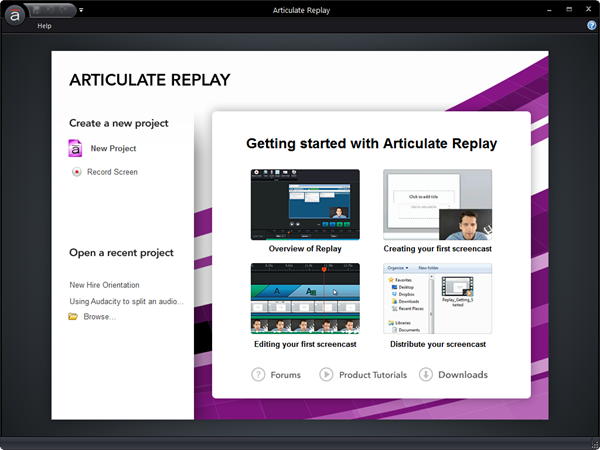
Step 2: Launch Replay.
Step 2: Launch Replay.
Content
Click the Record Screen button (see figure below):
Click the Record Screen button (see figure below):
Content
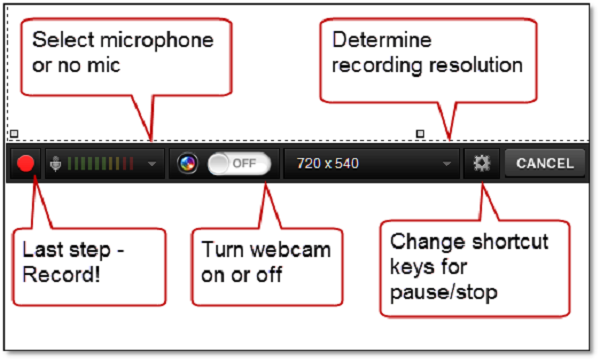
Adjust my settings in Replay (see figure below):
Adjust my settings in Replay (see figure below):
Content
Step 3: Record the activity.
Step 3: Record the activity.
Content
Step 4: Preview the recording and make any necessary edits.
Step 4: Preview the recording and make any necessary edits.
Content
Step 5: Publish … and send along to others.
Step 5: Publish … and send along to others.
Content
For some excellent how-to tutorials, check out these Articulate Tutorials: Articulate Replay and Getting Started with Articulate Replay . And here's the Storyline example—in case you’re interested in how to hide a group.
For some excellent how-to tutorials, check out these Articulate Tutorials: Articulate Replay and Getting Started with Articulate Replay. And here's the Storyline example—in case you’re interested in how to hide a group.