
ATD Blog
Toolbox Tip: How to Create Quick Knowledge Checks with Articulate Engage
Mon Dec 02 2013

Content
If you want to know whether learners are tracking with your material but don’t want to stop your course for a full-fledged quiz or assessment, try using a knowledge check instead. It’s a simple way to have the learner apply or repeat back what you just shared.
If you want to know whether learners are tracking with your material but don’t want to stop your course for a full-fledged quiz or assessment, try using a knowledge check instead. It’s a simple way to have the learner apply or repeat back what you just shared.
Content
Like traditional quiz questions, quick knowledge checks are an easy way for learners to assess mastery and demonstrate familiarity with content. But there’s a key advantage for knowledge checks: unlike full-fledged quizzes, learners don’t just submit an answer and move on. They can still explore the other choices and get valuable feedback about each to help them better understand the nuances of the content.
Like traditional quiz questions, quick knowledge checks are an easy way for learners to assess mastery and demonstrate familiarity with content. But there’s a key advantage for knowledge checks: unlike full-fledged quizzes, learners don’t just submit an answer and move on. They can still explore the other choices and get valuable feedback about each to help them better understand the nuances of the content.
Content
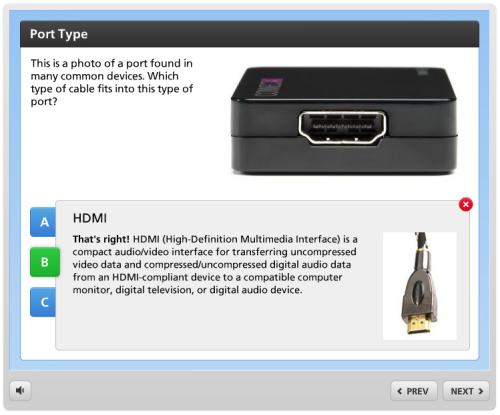
Example of a simple knowledge check
Example of a simple knowledge check
Content
Articulate Engage makes it really easy to build simple knowledge checks. Check out an example .
Articulate Engage makes it really easy to build simple knowledge checks. Check out an example.
Content
Here are the step-by-step guidelines for producing your own knowledge check:
Here are the step-by-step guidelines for producing your own knowledge check:
Content
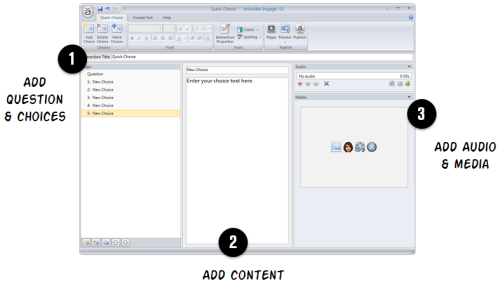
Step 1: Select the Quick Choice interaction. Like all of Engage’s interactions, this one is form-based, which makes it a breeze to build. Step 2: Add your content, including:
Step 1: Select the Quick Choice interaction. Like all of Engage’s interactions, this one is form-based, which makes it a breeze to build.Step 2: Add your content, including:
Content
questions—add a question or challenge to assess the learner
questions—add a question or challenge to assess the learner
Content
choices—provide up to five answer choice options
choices—provide up to five answer choice options
Content
media—add audio (for verbal feedback), pictures, or videos with each question or choice option
media—add audio (for verbal feedback), pictures, or videos with each question or choice option
Content
Step 3: When you’re finished adding content, simply hit Publish and you’re done.
Step 3: When you’re finished adding content, simply hit Publish and you’re done.
Content
The interaction can either act as a stand-alone knowledge check, as above, or added between slides in your e-learning course. To learn more, check out this tutorial .
The interaction can either act as a stand-alone knowledge check, as above, or added between slides in your e-learning course. To learn more, check out this tutorial.
Content
Bottom line: Next time you need to add a quick knowledge check, be sure to take advantage of the Quick Choice interaction in Articulate Engage.
Bottom line: Next time you need to add a quick knowledge check, be sure to take advantage of the Quick Choice interaction in Articulate Engage.