ATD, association for talent development

ATD Blog

Toolbox Tip: Use PowerPoint’s Selection Pane to Organize Objects on a Slide

By

Mon Jan 12 2015

Toolbox Tip: Use PowerPoint’s Selection Pane to Organize Objects on a Slide
Loading...
Toolbox Tip: Use PowerPoint’s Selection Pane to Organize Objects on a Slide-ca7b9634aad122cd249823fb382b0b89405f4f2857f99cfa66e4042efa5a41be

Content

Toolbox Tip: Use PowerPoint’s Selection Pane to Organize Objects on a Slide-ef159ca11a4844d5361212ba0a58d932cc334a90cf1d9cd1c390c66519eb58fe

Content

Naming Objects on a Slide

Naming Objects on a Slide

Content

When you insert an object on a slide, PowerPoint names it using the object type and a number (for example, Textbox 4). I rename objects on a slide when I have multiples of an object and I want to animate them.

When you insert an object on a slide, PowerPoint names it using the object type and a number (for example, Textbox 4). I rename objects on a slide when I have multiples of an object and I want to animate them.

Content

The slide below has three groups, one for each tip, but it’s hard to tell which group is Tip #1. Renaming the groups will make it easy to identify them.
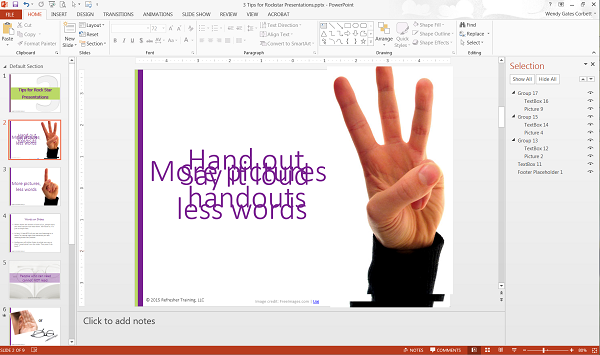
The slide below has three groups, one for each tip, but it’s hard to tell which group is Tip #1. Renaming the groups will make it easy to identify them.

Toolbox Tip: Use PowerPoint’s Selection Pane to Organize Objects on a Slide-172499a0eeb909deb10410f40a6bf95d306389dfa5b2d960ec1091b005f9c1b7

Content

Sign up for the Learning Technologies Newsletter !

Sign up for the Learning Technologies Newsletter!

Content

One of my favorite PowerPoint discoveries is the Selection Pane. It’s a handy little tool to organize and manage the objects on a slide, such as images, shapes, and textboxes. I use it in two ways, mostly when working with slides that have multiple objects:

One of my favorite PowerPoint discoveries is the Selection Pane. It’s a handy little tool to organize and manage the objects on a slide, such as images, shapes, and textboxes. I use it in two ways, mostly when working with slides that have multiple objects: 

  1. Content

    to de-clutter a slide by hiding some objects as I work with others

    to de-clutter a slide by hiding some objects as I work with others

  2. Content

    to name objects so they’re easy to identify.

    to name objects so they’re easy to identify. 

Content

Hiding Objects on a Slide

Hiding Objects on a Slide

Content

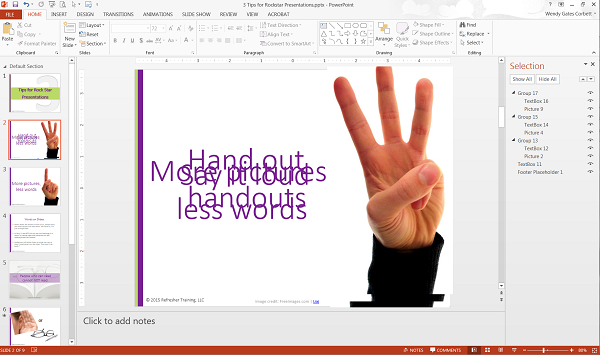
Hiding objects gets them out of the way without deleting them. I use the Selection Pane when I’m working on a slide with multiple objects or groups of objects and I want to work with them one at a time. For example, the slide below has three groups of objects: each group contains an image (1, 2, or 3 fingers) and a textbox. When they’re all showing, the slide is really messy.

Hiding objects gets them out of the way without deleting them. I use the Selection Pane when I’m working on a slide with multiple objects or groups of objects and I want to work with them one at a time. For example, the slide below has three groups of objects: each group contains an image (1, 2, or 3 fingers) and a textbox. When they’re all showing, the slide is really messy.

Content

I followed these steps to hide two of the three groups so they don’t interfere as I work with the first group:

I followed these steps to hide two of the three groups so they don’t interfere as I work with the first group:

  1. Content

    Show the Selection Pane.

    Show the Selection Pane.

  • Content

    On the Home tab in the Editing group, show the Select dropdown menu.

    On the Home tab in the Editing group, show the Select dropdown menu.

  • Content

    Choose Selection Pane.

    Choose Selection Pane.

  • Content

    The Selection Pane appears on the right side with a list of all objects on the slide.

    The Selection Pane appears on the right side with a list of all objects on the slide.

  1. Content

    In the Selection Pane, toggle the object’s visibility.

    In the Selection Pane, toggle the object’s visibility.

  • Content

    Select the object.

    Select the object.

  • Content

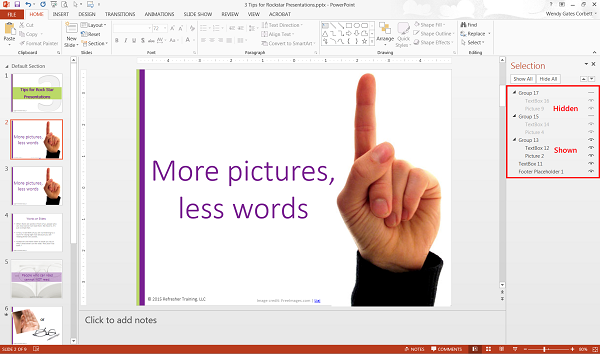
    Click the “eye” icon to hide the object (see image below).
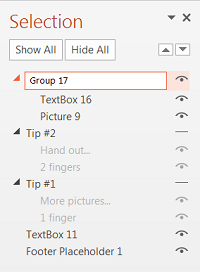
    Click the “eye” icon to hide the object (see image below). 

Toolbox Tip: Use PowerPoint’s Selection Pane to Organize Objects on a Slide-1b938dedb756bc57753b81be1b6271e3c9c48bc136db37ba41a79fb3f21c2c48

Content

I followed these steps to rename the groups:

I followed these steps to rename the groups:

  1. Content

    In the Selection Pane, click twice on an object name to make the field editable (note: this is NOT a double-click. Click slowly).

    In the Selection Pane, click twice on an object name to make the field editable (note: this is NOT a double-click. Click slowly).

  2. Content

    Edit the object name.

    Edit the object name.

  3. Content

    Click outside the name field. The new object name appears (see image below).

    Click outside the name field. The new object name appears (see image below).

Content

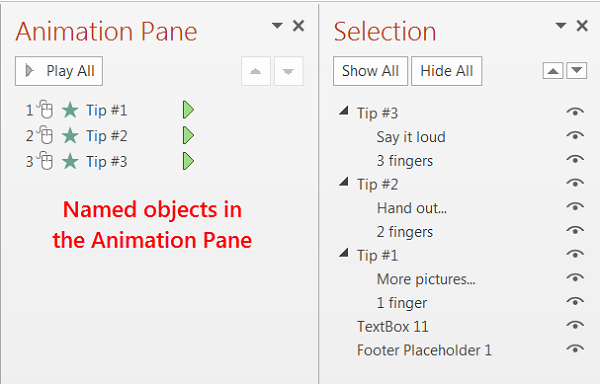
Here’s what renamed objects look like in the Animation Pane.

Here’s what renamed objects look like in the Animation Pane. 

Content

**

**

Toolbox Tip: Use PowerPoint’s Selection Pane to Organize Objects on a Slide-4cec62461ce0d7d0c579517a85bdf0dae664f25f82c823fb41bfb688e90c9d41

Content

**

**

Content

Tips for Working with the Selection Pane

Tips for Working with the Selection Pane

  • Content

    Be sure to show all objects again when you’re done working on a slide. Objects that are hidden will not appear in Slide Show mode.

    Be sure to show all objects again when you’re done working on a slide. Objects that are hidden will not appear in Slide Show mode.

  • Content

    You don’t have to name every object on a slide. For example, I didn’t need to rename the slide footer or the textbox used for the image credits.

    You don’t have to name every object on a slide. For example, I didn’t need to rename the slide footer or the textbox used for the image credits.

Content

Check out similar articles: Escape PowerPoint Purgatory

Check out similar articles: Escape PowerPoint Purgatory

You've Reached ATD Member-only Content

Become an ATD member to continue

Already a member?Sign In


Copyright © 2026 ATD

ASTD changed its name to ATD to meet the growing needs of a dynamic, global profession.

Terms of UsePrivacy NoticeCookie Policy